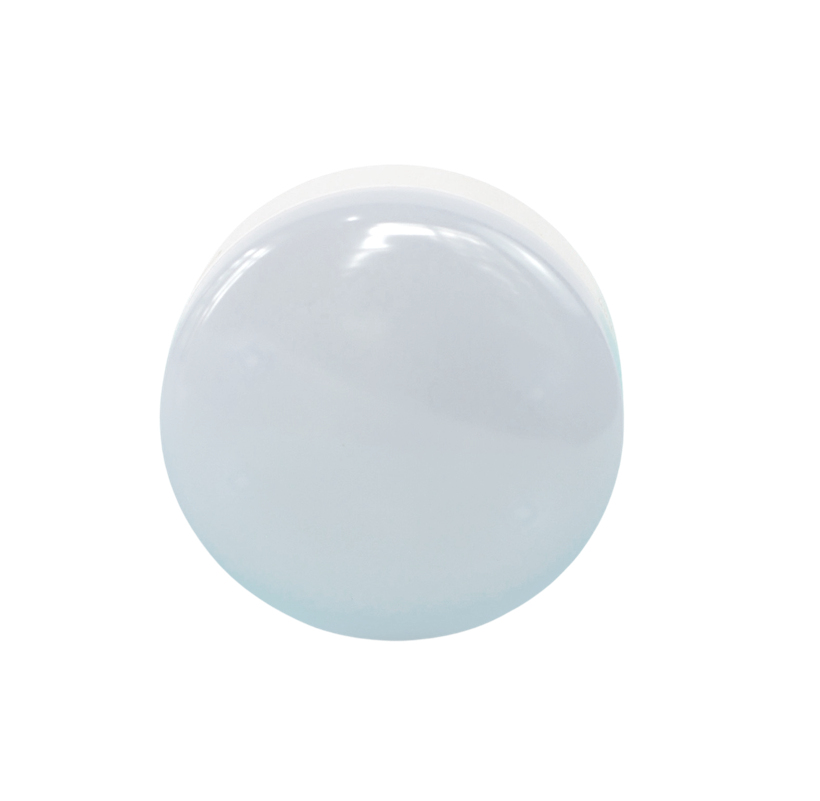
Installation, connection and safety instructions for the IR W wireless infrared blaster that replaces the remote controls of air conditioners, TVs and fans.
Wireless infrared blaster that replaces the remote controls of air conditioners, TVs, fans and other IR devices.
Item
Detail
Model
IR W
Category
Infrared device
02 Features
Wireless infrared blaster designed to replace the conventional remote controls of air conditioners, TVs, fans and other devices that use infrared signals.
Built-in Raptortron Mesh wireless connection to link with the central control system.
Remote control and monitoring through the Raptortron mobile app.
Precise operating schedules and automation scenarios can be set for air conditioners, multimedia equipment and other infrared-controlled devices.
03 Technical specifications
01 Design & dimensions
Specification
Value
Housing colour
White
Housing material
Flame-retardant PC + ABS plastic
Dimensions
75mm x 25mm
02 Infrared characteristics
Specification
Value
IR data length
50~1000 pulses / 30 commands per channel, carrier frequency 38kHz
Choose the location. Place the device in a central position with a direct line of sight to all the devices to be controlled by infrared.
Connect the power. Plug the USB cable into a 5V DC adapter or a USB port. The LED lights up to confirm that power is supplied.
Wait for start-up. Wait 10–15 seconds for the device to enter standby. The LED changes to slow blinking when it is ready to pair.
Learn remote commands. In the Raptortron app, select the target device and tap Learn command; point the original remote at the Raptortron device and press the corresponding key.
05 Connection guide
Preparation
Raptortron smart switch
1 central hub with an Internet connection
Raptortron app already connected to the central controller (make sure the phone and the central controller are on the same Internet network)
Download the Raptortron app for Android or iOS.
In the Raptortron app: auto learn
Tap. Open the Raptortron app, tap the "Menu" icon at the top of the screen, then select "Devices".
Tap. Tap the "Auto learn" icon.
Tap. When the "Auto learn" dialog appears, tick the "I have understood and agree" box, then tap "OK" to confirm.
The system starts a 60-second countdown to scan automatically and complete the device connection.
In the Raptortron app: manual learn
Open the "Menu" in the app, then go to "Devices".
Press and hold. Press and hold the icon of the device that you want to re-learn or replace.
In the list of options that appears, select "Manual learn".
Tap. When the "Manual learn" dialog appears, tap the "Learn" button.
The dialog shows the Device code and the Serial number of the device.
The app counts down 60 seconds to finish synchronising and remembering the new device.
Teaching the device ID to the central controller
Do this on the device while the app is counting down.
Press and hold. Press and hold the device to enter the MENU.
Release the button after you hear 2 beeps.
Press. Press the device button to teach the ID.
Result
If successful: the device exits automatically once the ID is taught.
If it fails: you keep hearing beeps. Press the control button on the infrared device to try teaching the ID again.
Important
Auto learn fails if the number of devices exceeds the capacity limit of the central controller.
In that case, see the Technical specifications of the central controller for the number of devices allowed, or switch to the manual learn method.
06 Safety notes
Use only a power supply that matches the technical specifications in this document. Using the wrong power supply can damage the device and be dangerous.
Do not open or repair the device while it is powered. All electrical wiring must be done by a qualified electrician.
Keep the device in a dry place, away from direct water splashes (except models explicitly rated as water-resistant, IP xx).
The product is covered by the official Raptortron warranty policy. Please keep your purchase invoice for the best support.
Raptortron IR W user manual. English edition translated in full from the manufacturer's original manual. Specifications are subject to change as firmware and hardware are refined; the product page lists the current data. Questions: contact Raptortron.